
Degree Audit: What If Tool
Purpose: This guide provides instructions for using the What If tool in Degree Audit. This tool allows students and advisors to run a simulated audit to explore how completed, in-progress, or planned courses would apply to different academic scenarios. You can use it to see how courses would fit into your current program or to explore changes such as a new major, minor, or concentration. Always confirm requirements with the appropriate academic department before making changes to your student record.
For additional help with Degree Audit refer to Degree Audit: Overview and Understanding Your Audit.
NAVIGATION
- Log in to RamPortal using your WCU Single Sign On (SSO).
- Locate the Degree Audit card. If the card is not on your RamPortal home page, try using View All Cards. For help with finding cards, visit Home Page Navigation: A Guide to the RamPortal Home Page.
- Click the Degree Audit link on the card.
- Once the Degree Audit loads, scroll down to the Academic section and select the What-If tab.
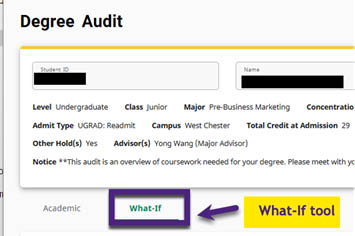
Click on the What-If Tab to start a new audit.
TO SIMULATE FUTURE COURSES IN CURRENT PROGRAM
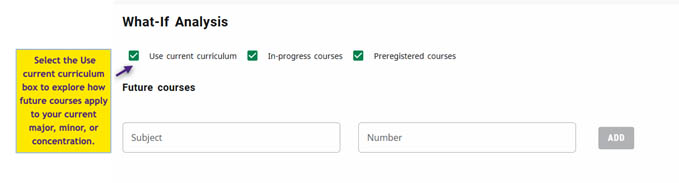
- To simulate how future courses would apply to your current program of study, select Use Current Curriculum. This option hides the ability to choose a different program or field of study.
- Once selected, you can enter individual course subjects and numbers to see where they would apply.
TO SIMULATE A NEW PROGRAM, MAJOR, MINOR, OR CONCENTRATION
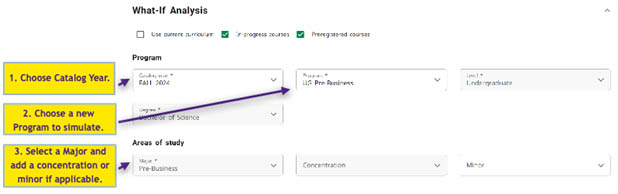
Catalog Year
- The current academic year is set as default.
- If you are exploring programs that begin in a future term, select that future catalog year in the drop-down.
Program
- Choose the Program you would like to explore.
- If you are only adding a minor or concentration, choose your current program.
- Tip: To jump to specific sections in the dropdown, type the first letter of the program name.
Level and Degree
- These fields auto-fill based on the selected Program.
- Note: Some programs have unique degree names (i.e., BSEE for Electrical Engineering. Check the University Academic Catalog for more information about degree names.)
Areas of Study
- Select the major, minor or concentration you want to explore adding.
- Some majors, like Biology, require a concentration. Others, like Theater, offer concentrations but don’t require them.
Additional Areas of Study
- Use this section if your exploring adding a second major.
- Both programs must share the same degree type, i.e., both must be BS
- Tap on the + icon to add another program or the x icon to remove one.
Future Courses
- To include specific courses in the simulation, enter the subject and course number, and tap the ADD button.
- Once everything is selected, tap the PROCESS button.
UNDERSTANDING YOUR WHAT-IF RESULTS
Once you generate a What-If Audit, you will see how your courses are applied to the selected program. How to read the results:
- Green check: Requirement or course is complete
- Red circle: Requirement or course is not complete
- Blue half circle: Course is in progress or registered for
- See additional symbols in the legend below. This legend can also be found at the bottom of your Degree Audit page.

VIEWING COURSE INFORMATION AND PLANNING AHEAD
- Review how many new requirements are added and whether it impacts your graduation timeline.
- Check the Free Electives section. If full, it will be marked Complete. If not, you will see Still Needed with the number of remaining credits needed.
- Consider when courses are being offered. Click the course to open a pop-up window that displays term availability.
- If registration is open, a pop-up will also show the number of available and filled seats.
- The What-If audit automatically saves. You can also print or save a PDF version by clicking on the print icon at the top of the page.
For support, please submit an AES Support Portal ticket.