Anthology Instructions: Student Teaching - Supervisors
Logging into the System
You can log into the system directly via this link: https://wcupa.chalkandwire.com/Login.aspx
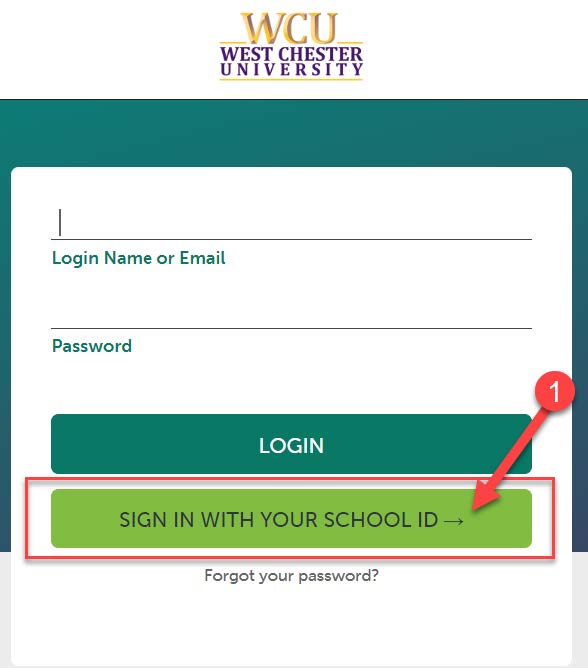
- Click on “Sign in with your school ID”.
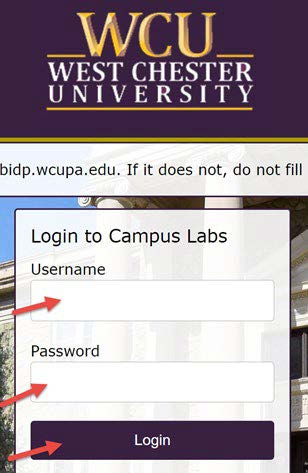
- Then you will be prompted to log in with your WCU log in credentials (the same username
and password that you use for D2L, email, RamPortal, etc.)
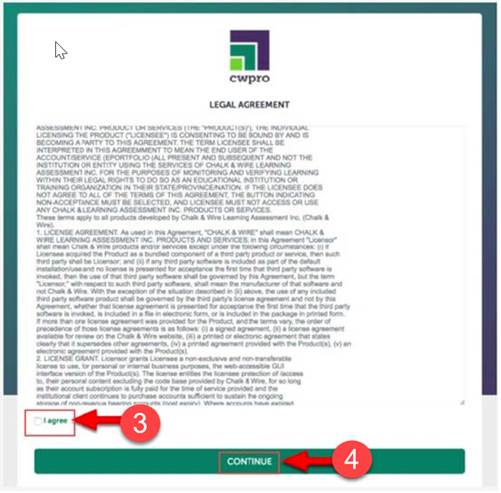
- Your first time logging in to the system, you will need to read and accept the legal
agreement for using Anthology Portfolio. Once you have read the agreement, select
“I agree.”
- Then, click “Continue.” You will only have to do this once on your first-time logging
into the system.
Student Teaching Structure in Anthology
Student Teacher
| Placement |
Portfolio |
- View Placement Information
- Complete the Danielson Self Evaluation
- Review assessments done by Supervisor & Mentor Teacher
|
- Submit
- Unit Plan/Lesson Plans
- SPM
- Domain 4 Evidence
- Candidate Signature Page
- Other Program specific assignments that are completed during student teaching
|
University Supervisor
| Placement |
Portfolio |
- View Placement Information
- Assess
- Danielson Rubric
- SPM Rubric
- Summative Performance Rating (2nd Half Only)
- Review
- Mentor Teacher Assessment
- Candidate Self-Assessment
|
- Review
- All submissions listed above
- Assess
- Student Teaching Task Completion Rubric
- Any other Program specific assignments that are completed during student teaching
|
Mentor Teacher
| Placement |
Portfolio |
- View Placement Information
- Assess
- Danielson Rubric
- EPP Technology Rubric (2nd Half Only)
|
None – does NOT have access to Portfolio |
Viewing Your Student Teacher’s Placements
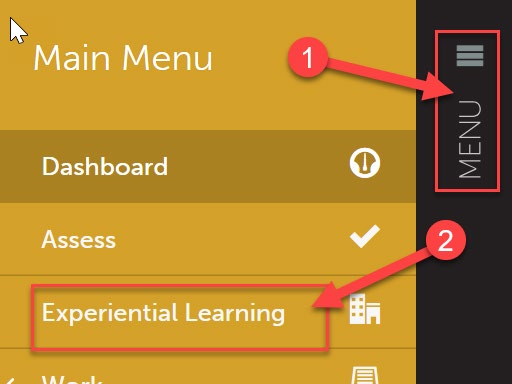
- Click on the “Menu” tab on the left side.
- Click on “Experiential Learning”.
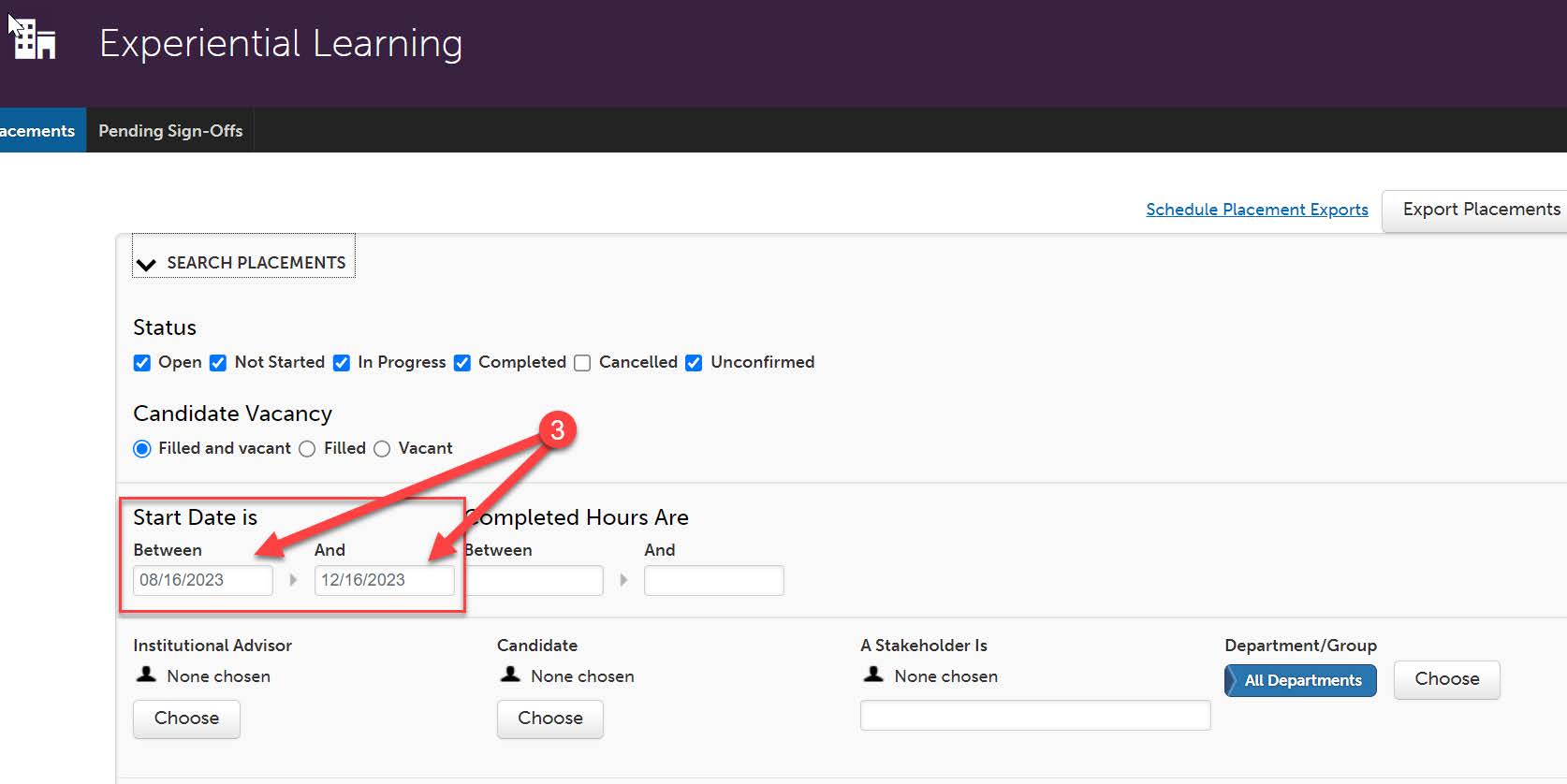
- From here, you will need to complete a search to view a list of your placements for
that semester. You can leave most of the search settings as the default. The only
parameter you want to change is the dates. If you wish to view your placements for
the entire semester, put the dates of the entire semester. If you just wish to view
your placements for one half or the other, enter the dates of just that half.
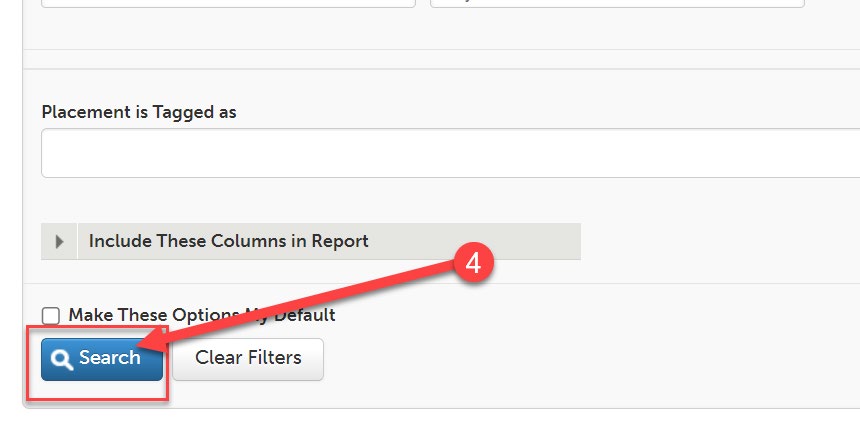
- Then, scroll down a bit, and click “Search.”
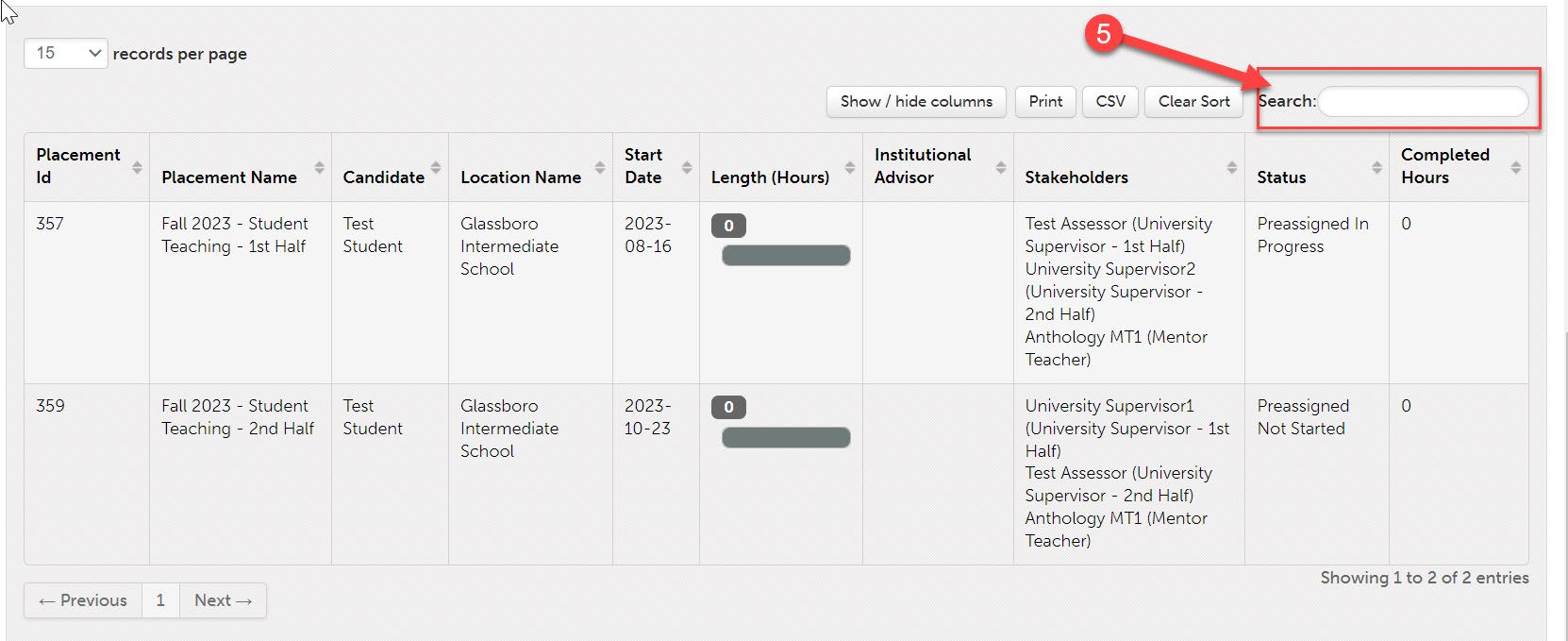
- You will now see a list of all of your placements for that half or semester. From
here, if you wish to find a specific student, you can use the search bar. Start typing
the students first or last name and the search feature will filter as you type.
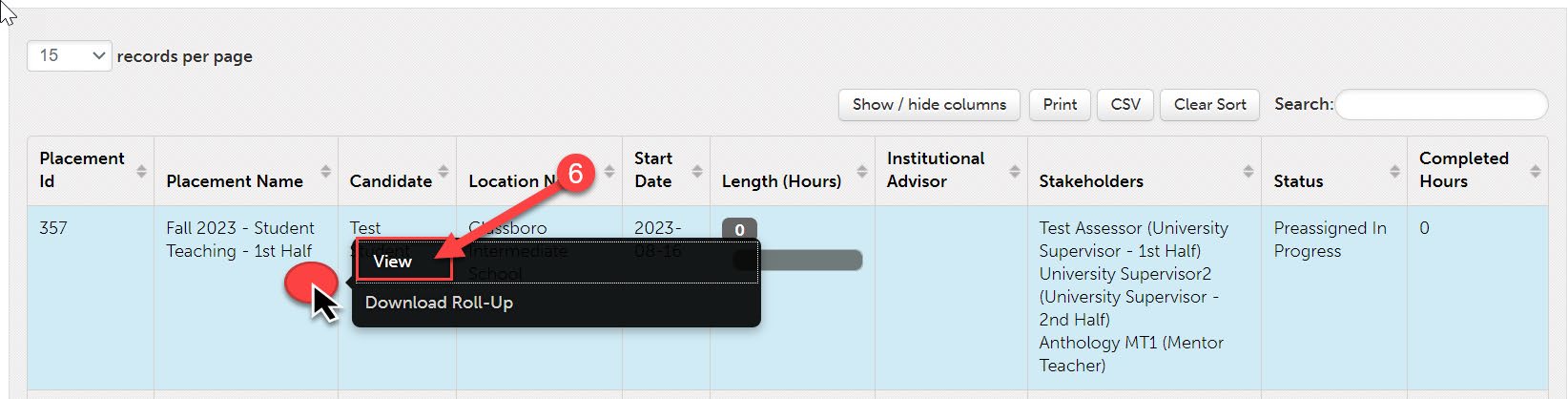
- To view the details of a specific student’s placement, click anywhere on the row of
that placement, then click “View”.
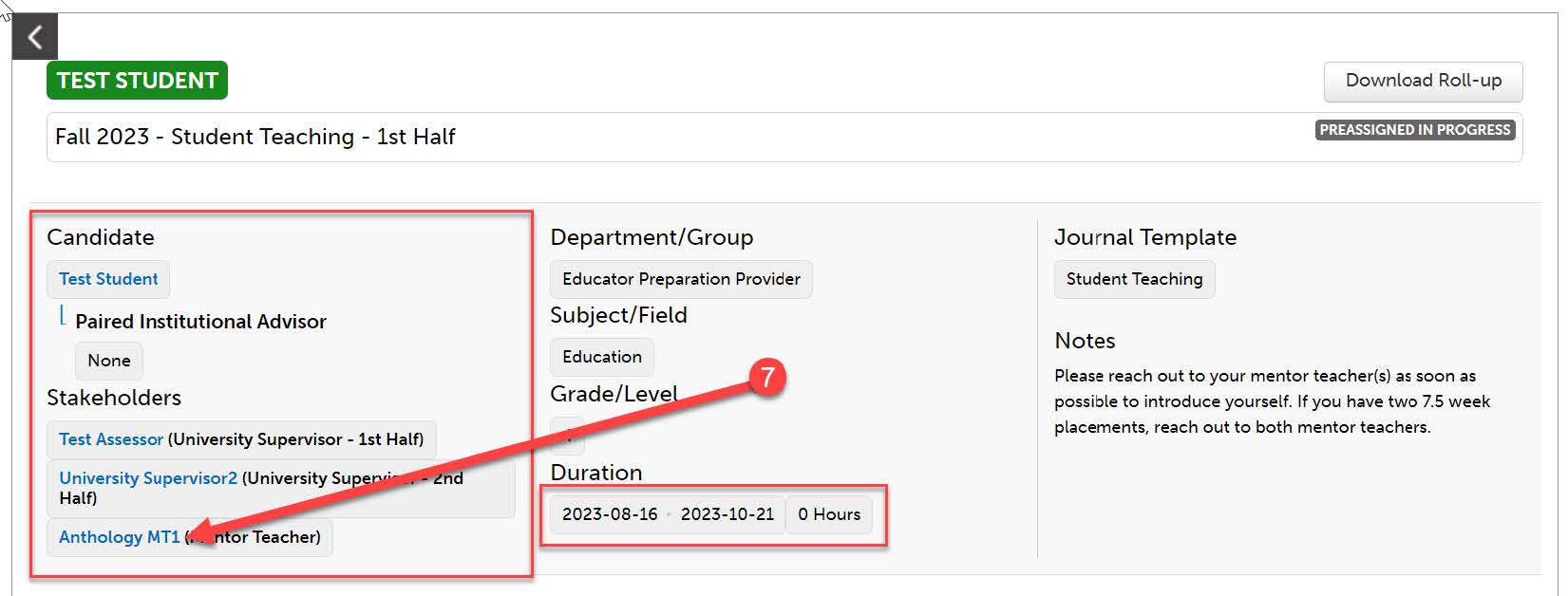
- In the placement, you will be able to view you’re the student’s name, the Mentor Teacher’s
name, the other half Supervisor’s name (if the student is a dual major,) and the dates
of the placement. As the supervisor, you have access to the email addresses for all
stakeholders in the placement (the student only has access to the MT’s email address).
To view an email address, click on that person’s name.
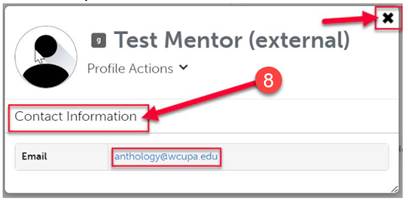
- Then, click “Contact Information”. You can click directly on their email address which
will open a blank email, or you can copy and paste the email address for your use.
Click the X when you are done.
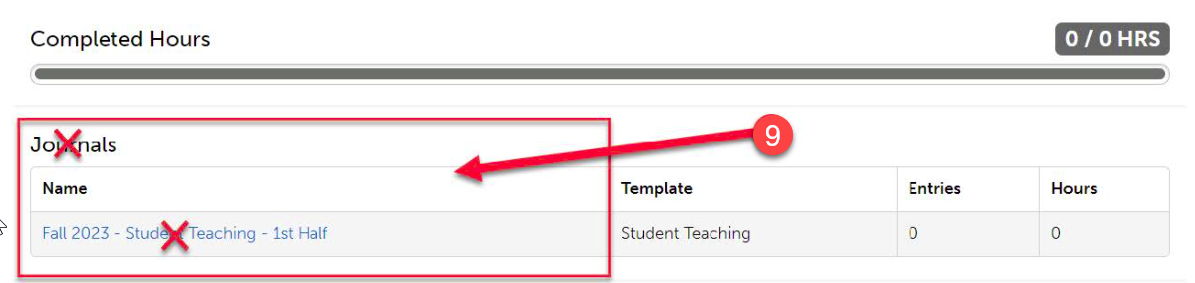
- Scroll down a bit, and you will notice a section titled “Journals”. You do NOT have
to do anything here, neither does the student. This is a placeholder, and you do not
need to worry about completing anything.
- Further down, you will see a grid containing a list of Assessments. These are all
the assessments that will take place during that student teaching placement. Please
note that most of these assessments will take place during both 1st half and 2nd half.
Further instructions on this are included in the “Assessing Student Teaching Requirements”
section of this document.
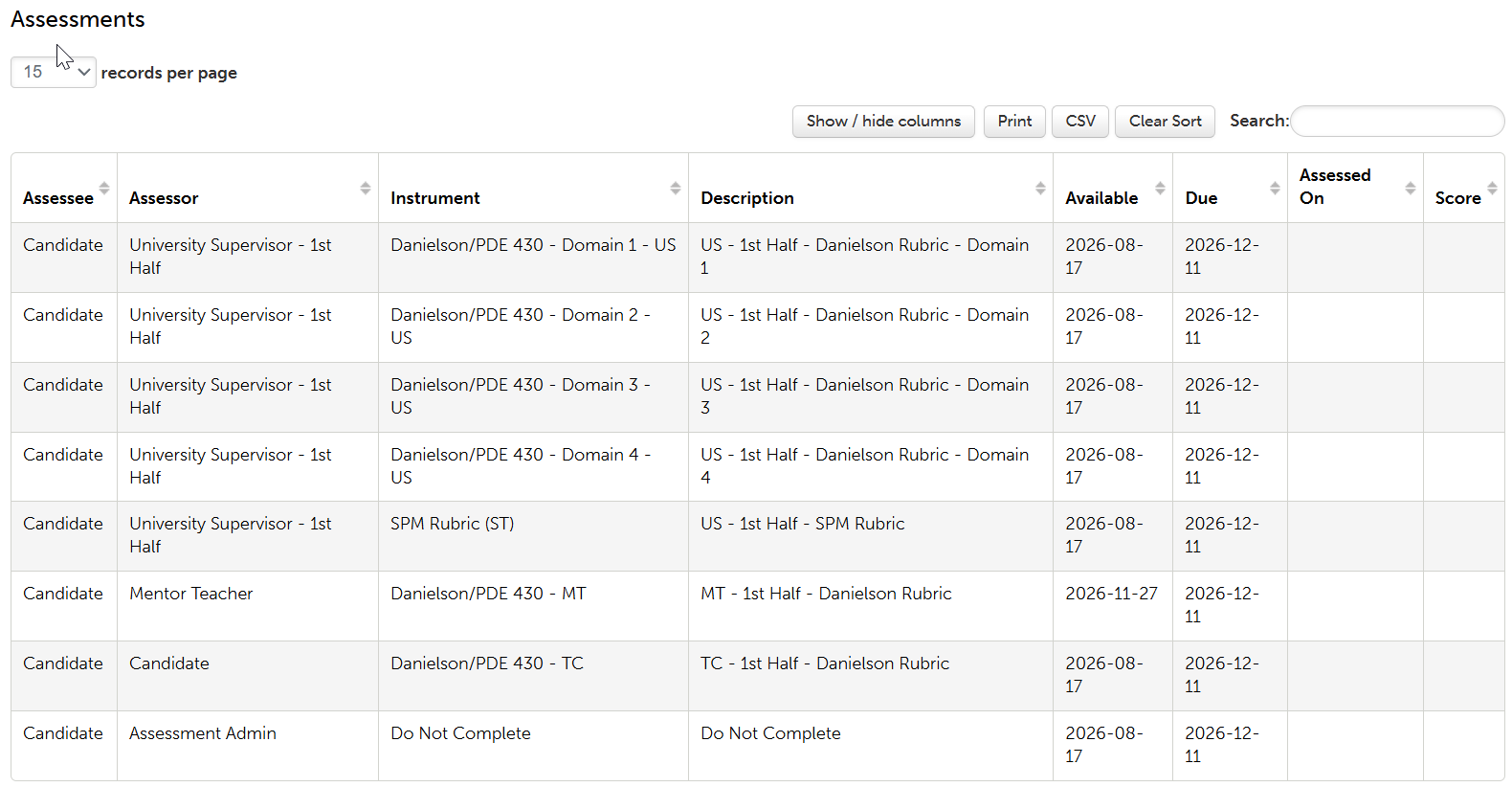
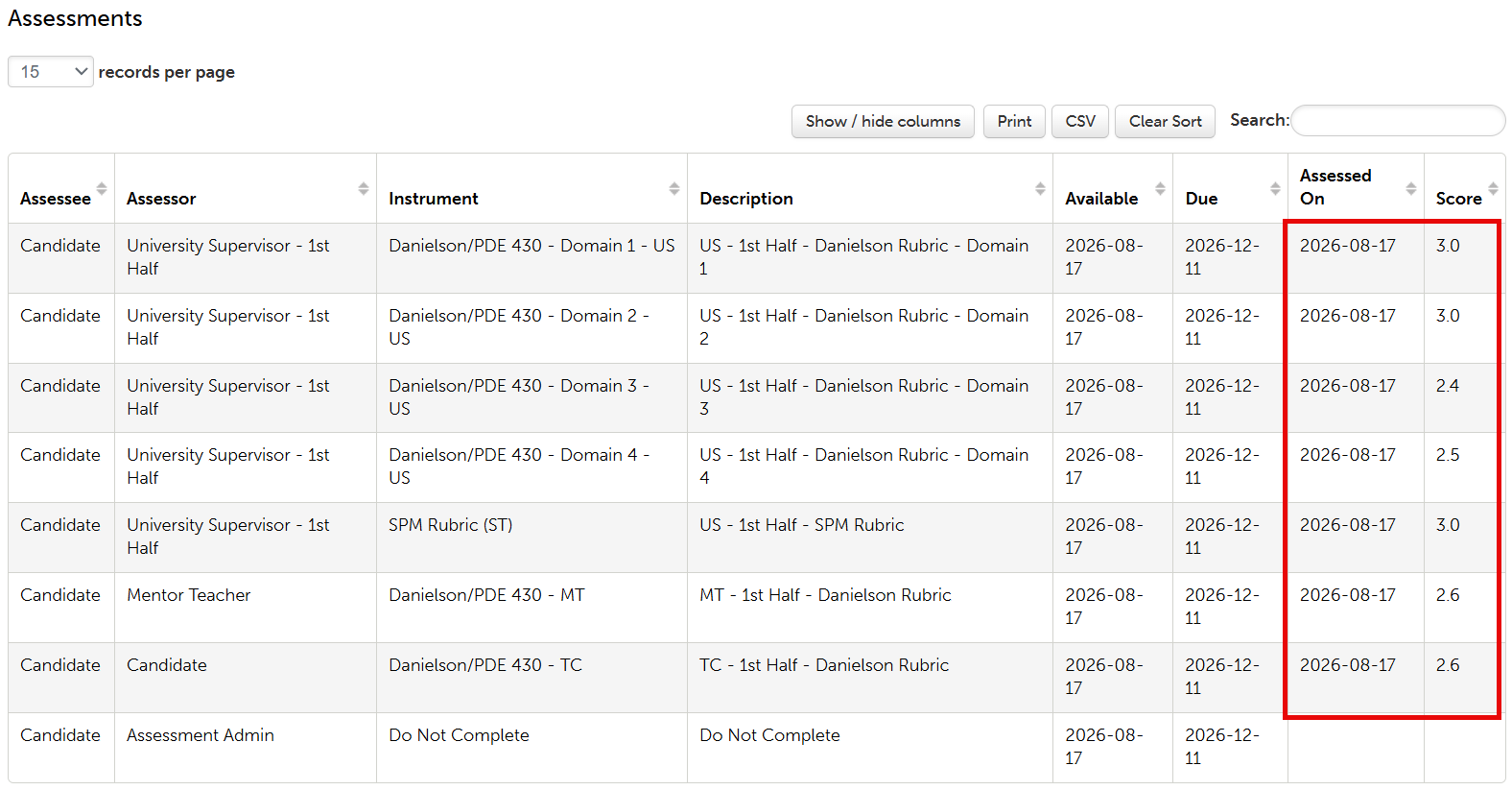
- Once these items become assessed, you will be able to see the date they were assessed
on as well as the mean score.
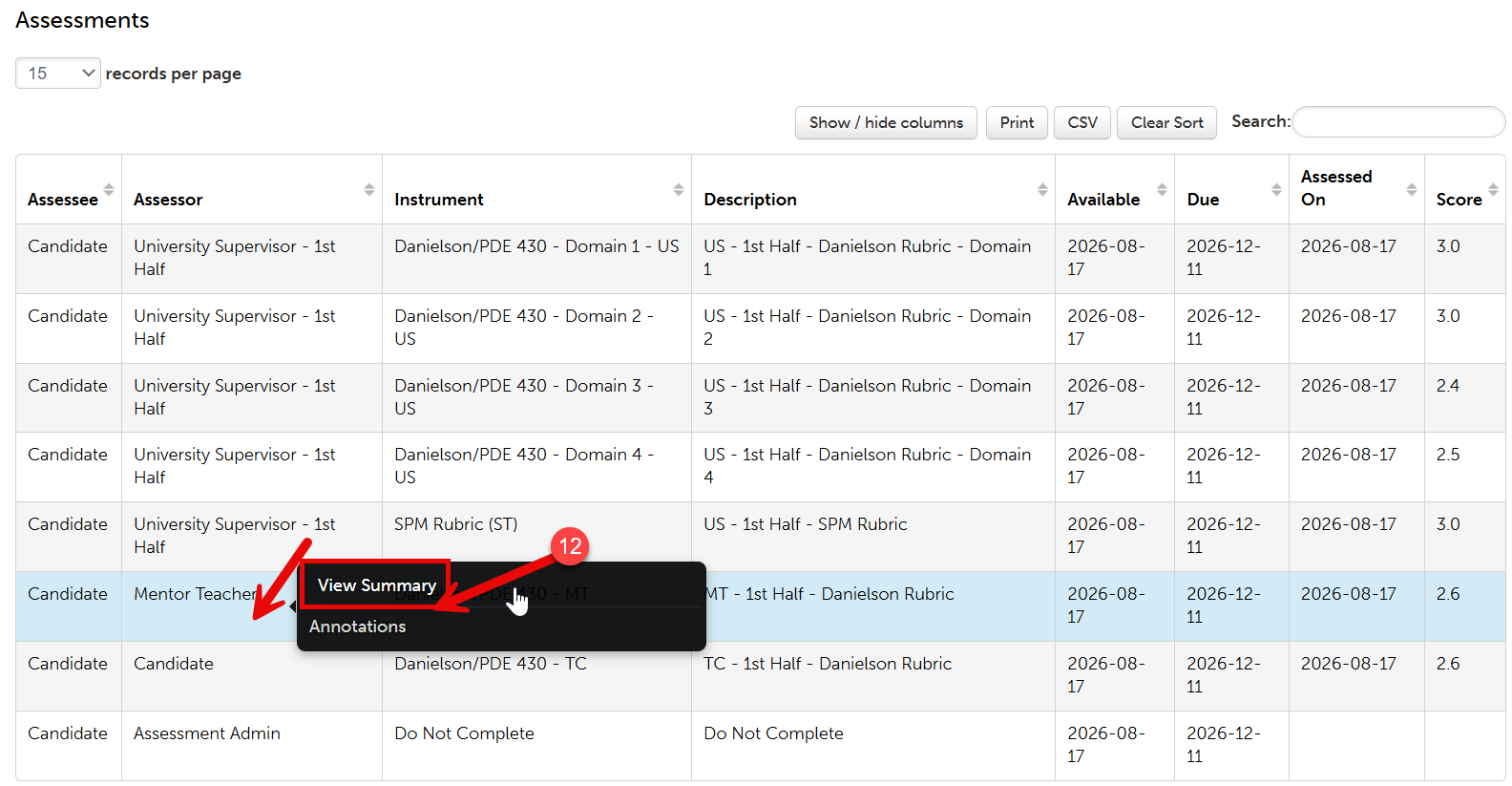
- To view details regarding these assessments, click on the assessment, then click “View
Summary.”
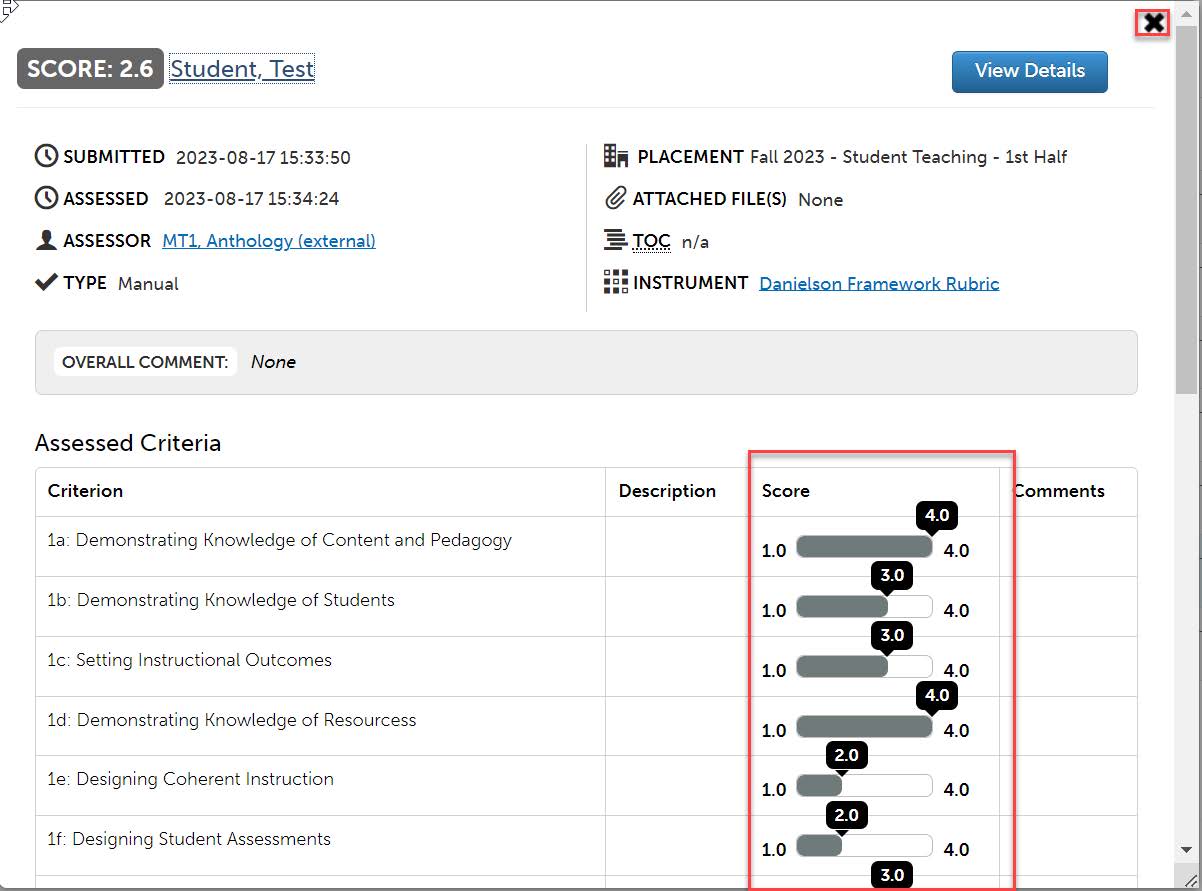
- You will be able to see how the student was scored on each criteria of the rubric,
as well as any comments if any were left. Click the “X” when you are done viewing.
- Finally, at the very bottom of the placement, you can view information on the student’s
placement school. This includes address, phone number, diversity information, and
a map to show you the location of the school.
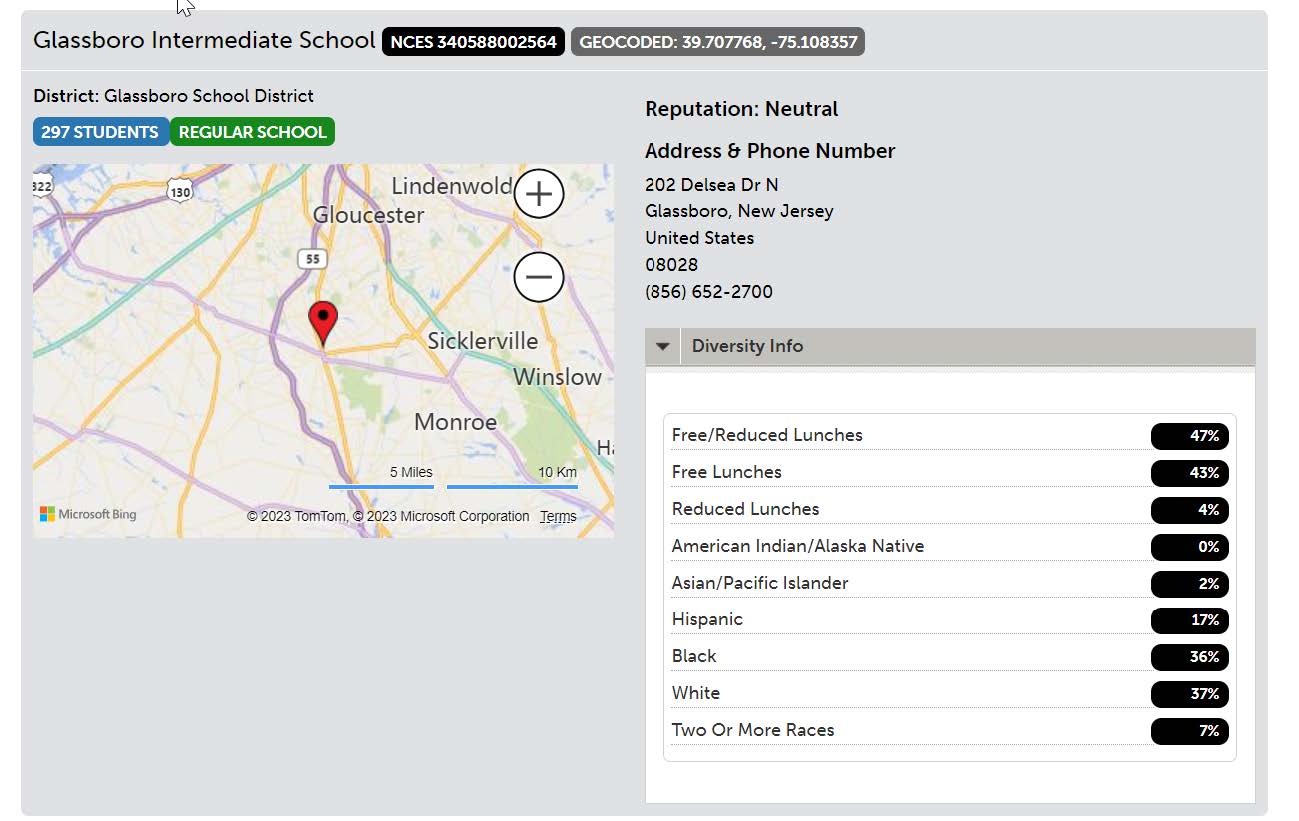
Viewing Your Student Teacher’s Portfolios
- All student teaching requirements that must be uploaded by the student will be done
so via a portfolio. However, you will only be able to view these items once the student
has uploaded them and submitted them to you. To view what has been submitted to you,
on your dashboard, click “Pending Assessments.”
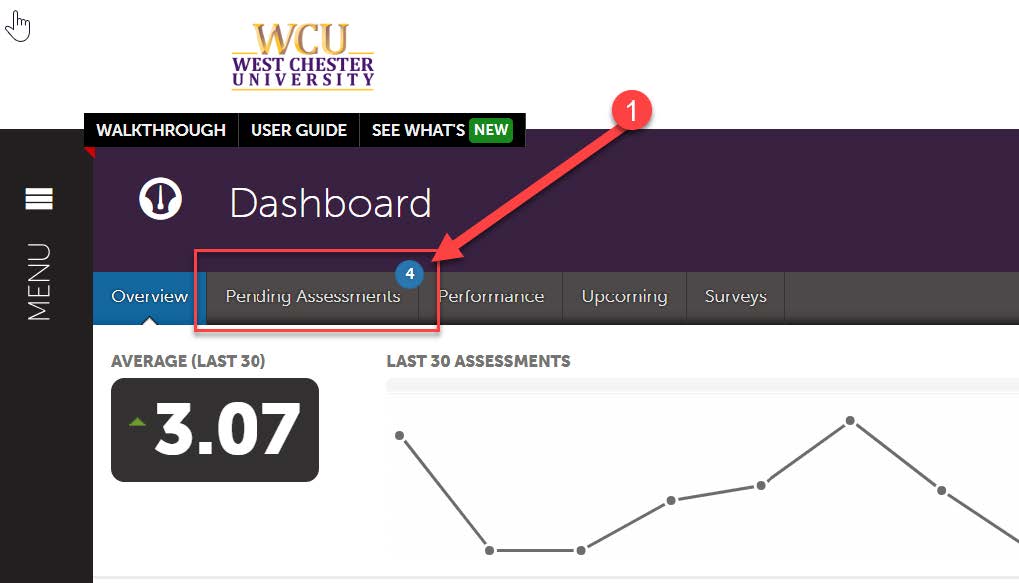
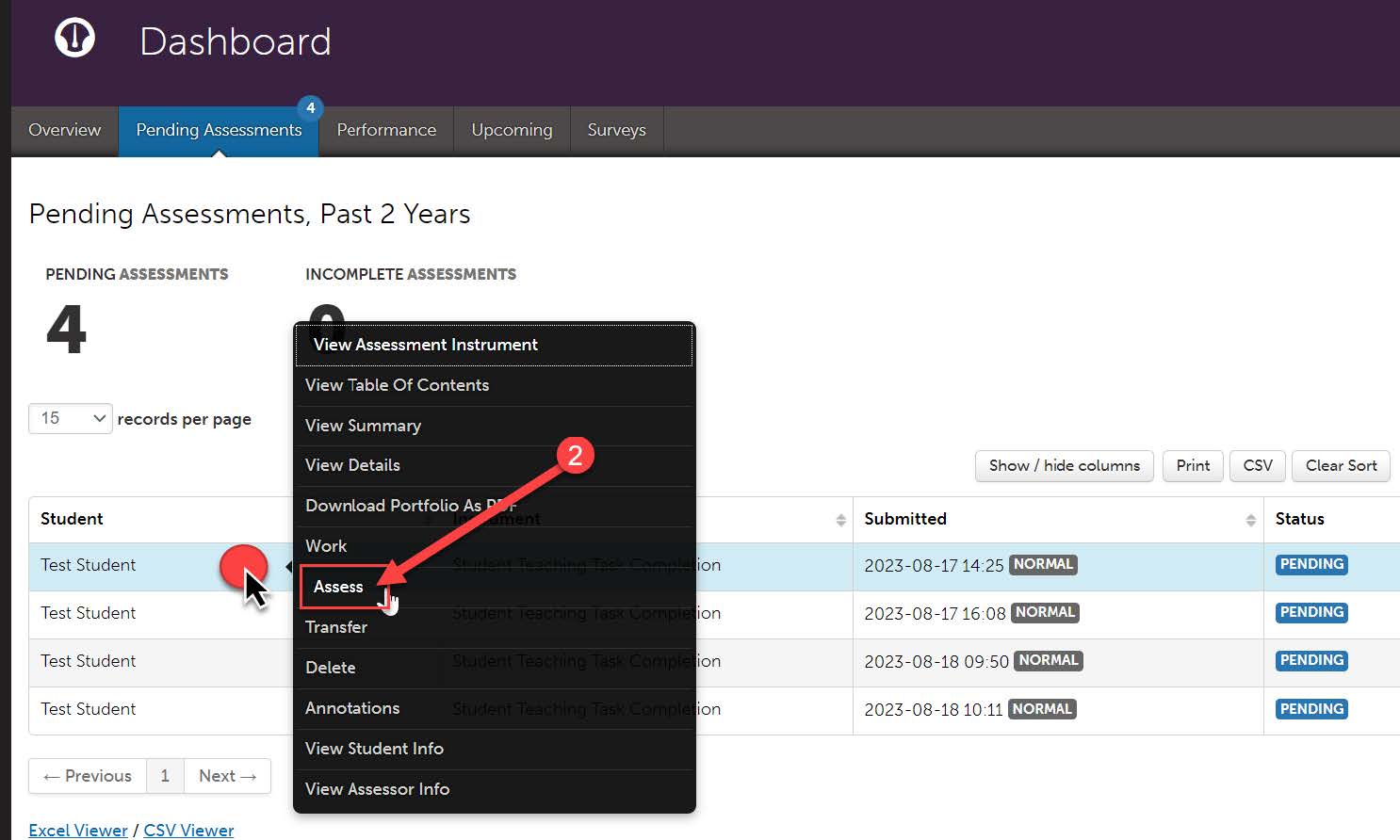
- This list will include ALL submissions to you, whether student teaching related or
not. Find the submission you are ready to review. Click anywhere on the row, then
click “Assess.”
- For MOST student teaching requirements (Unit Plan/Lesson Plans, SPM, Domain 4 Evidence,
Candidate Signature Page), you will be completing the “Student Teaching Task Completion”
rubric. This rubric is just a “Yes” or “No” rubric on which you will confirm that
the student has completed each requirement. You will complete this rubric for each
of those 4 requirements. You will actually assess these items via the Danielson Rubric
and the SPM Rubric in the Placement. There are a few exceptions to this rule: for
example, if a program has a program specific Lesson Plan rubric, they will assess
that instead of the “Student Teaching Task Completion” rubric in the Portfolio. They
will also still assess the Danielson Rubric and the SPM Rubric in the Placement.
- To complete the “Student Teaching Task Completion” rubric, first click on the 4-arrows
icon.
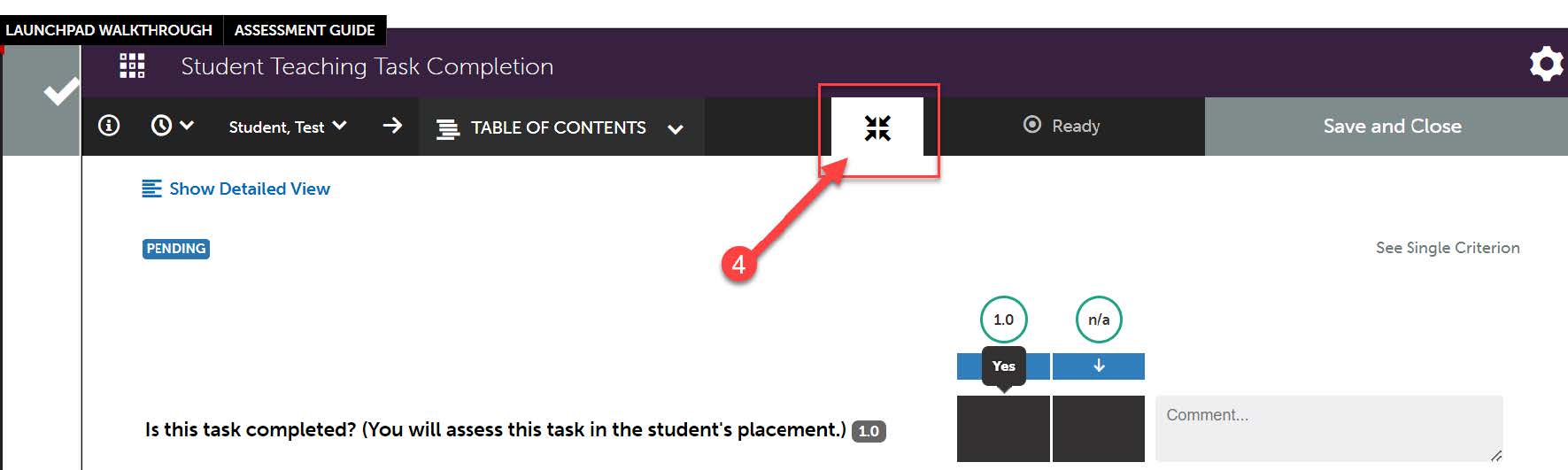
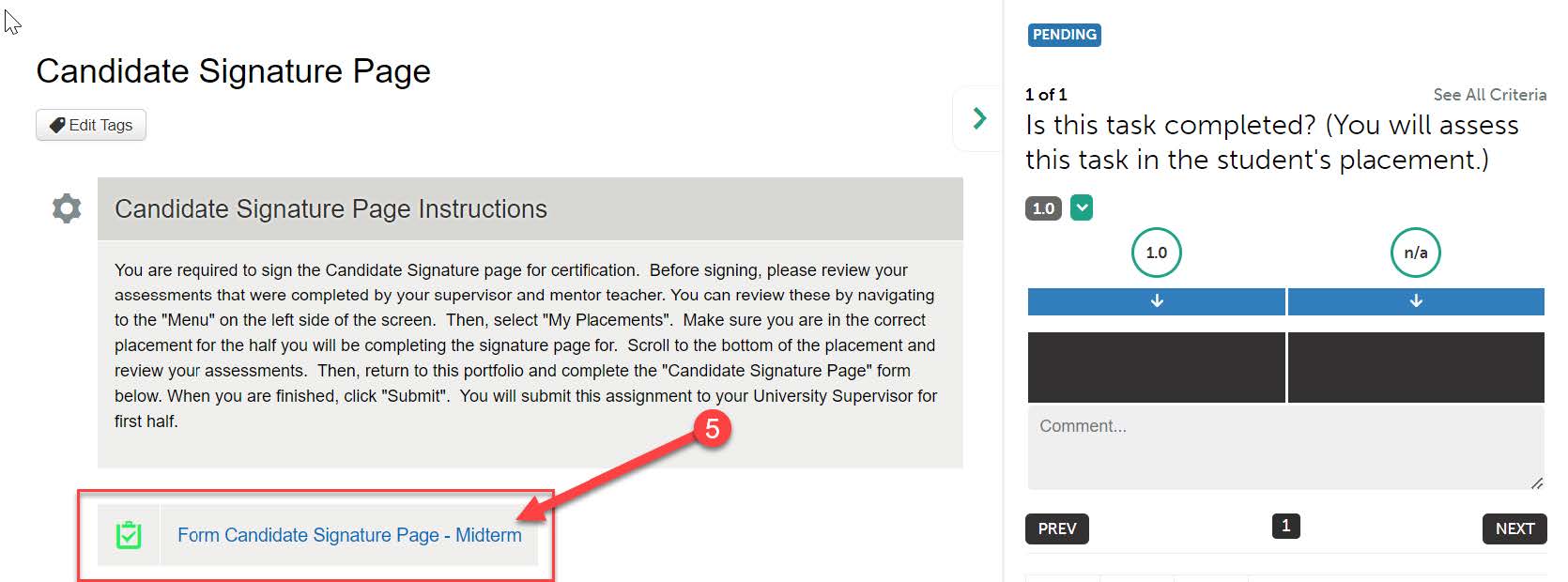
- This will allow you to view the student’s submission and the rubric at the same time.
In the example in the screenshot below, we are assessing the student’s “Candidate
Signature Page.” To confirm completion, click on the form and confirm that the student
has signed and dated. In the other requirements, there may be different forms or file
uploads that you will need to review to confirm completion. You can do all that in
the same manner.
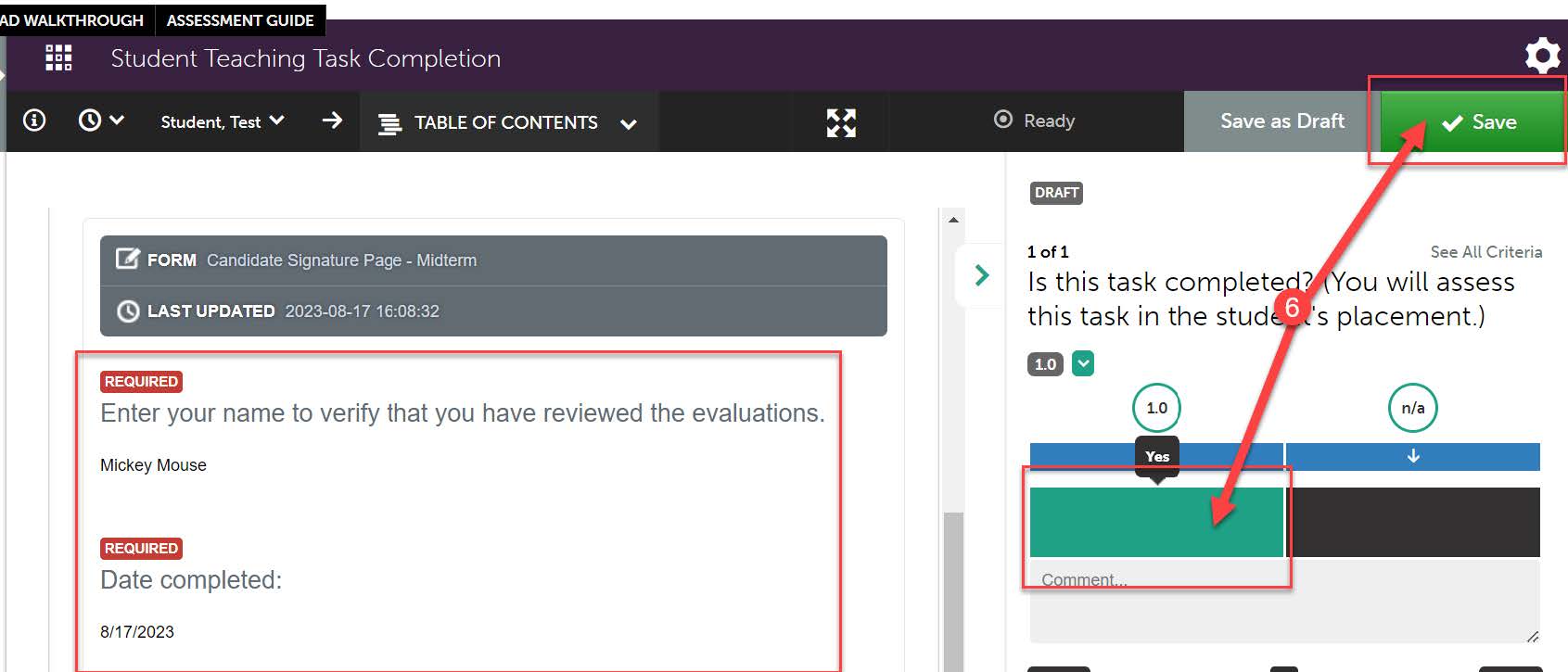
- Once you have confirmed completion, click on the black box below the “1” which indicates
that, yes, the student completed the requirement. You can add a comment if necessary.
Then, click “Save”.
- Once you have saved, you are finished with that item. You can return to your dashboard
and repeat steps 2-6 for the other student teaching submissions.
Assessing Student Teaching Requirements
Danielson Rubric
- The Danielson Rubric must be scored in BOTH halves of student teaching. To assess
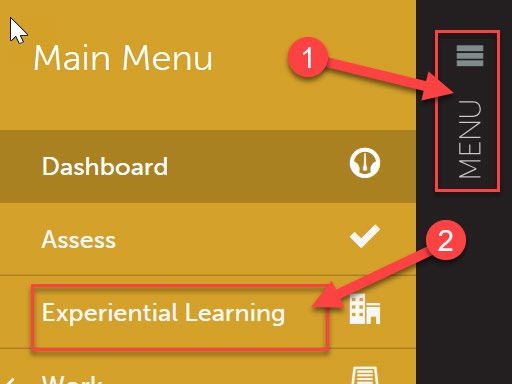
the Danielson Rubric, navigate back to the student’s placement. Click the “Menu” tab
on the left side.
- Click on “Experiential Learning”.
- Follow the instructions from steps 3-6 in the “Viewing Your Student Teacher’s Placements”
section of this document to access the student’s placement.
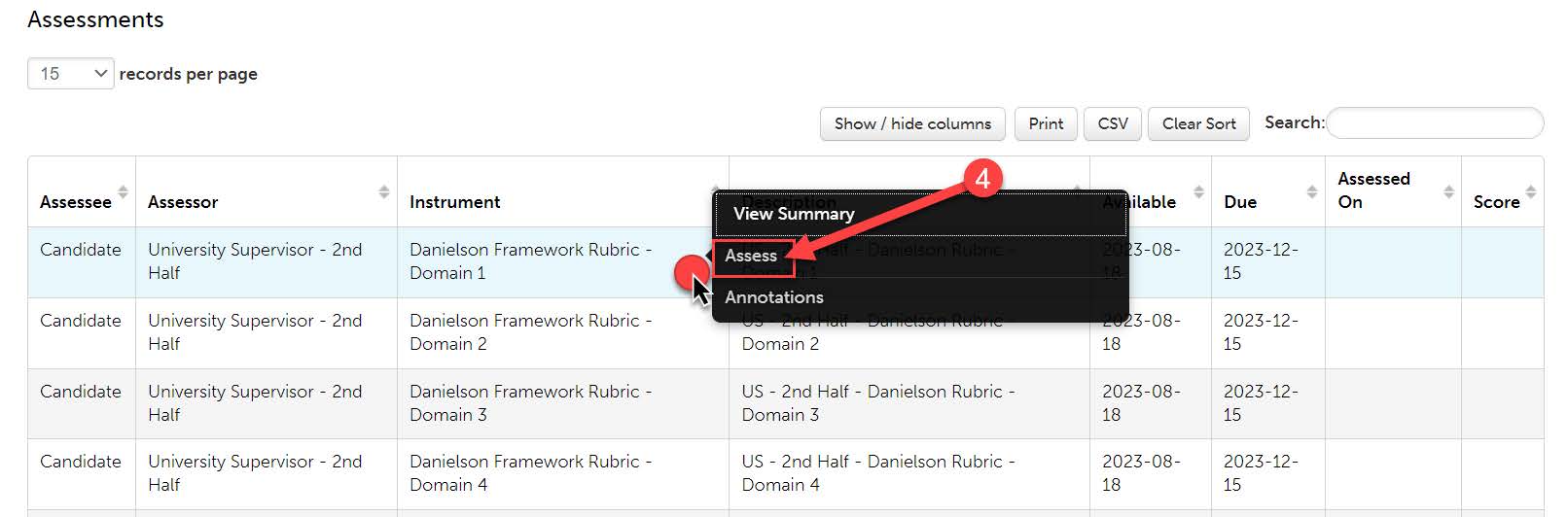
- Scroll to the section of the placement that lists all the assessments. In student
teaching, the Danielson rubric is broken up into 4 rubrics, 1 for each domain, for
assessment purposes. To complete the first, click on that row. Then, when a menu appears,
click “Assess”.
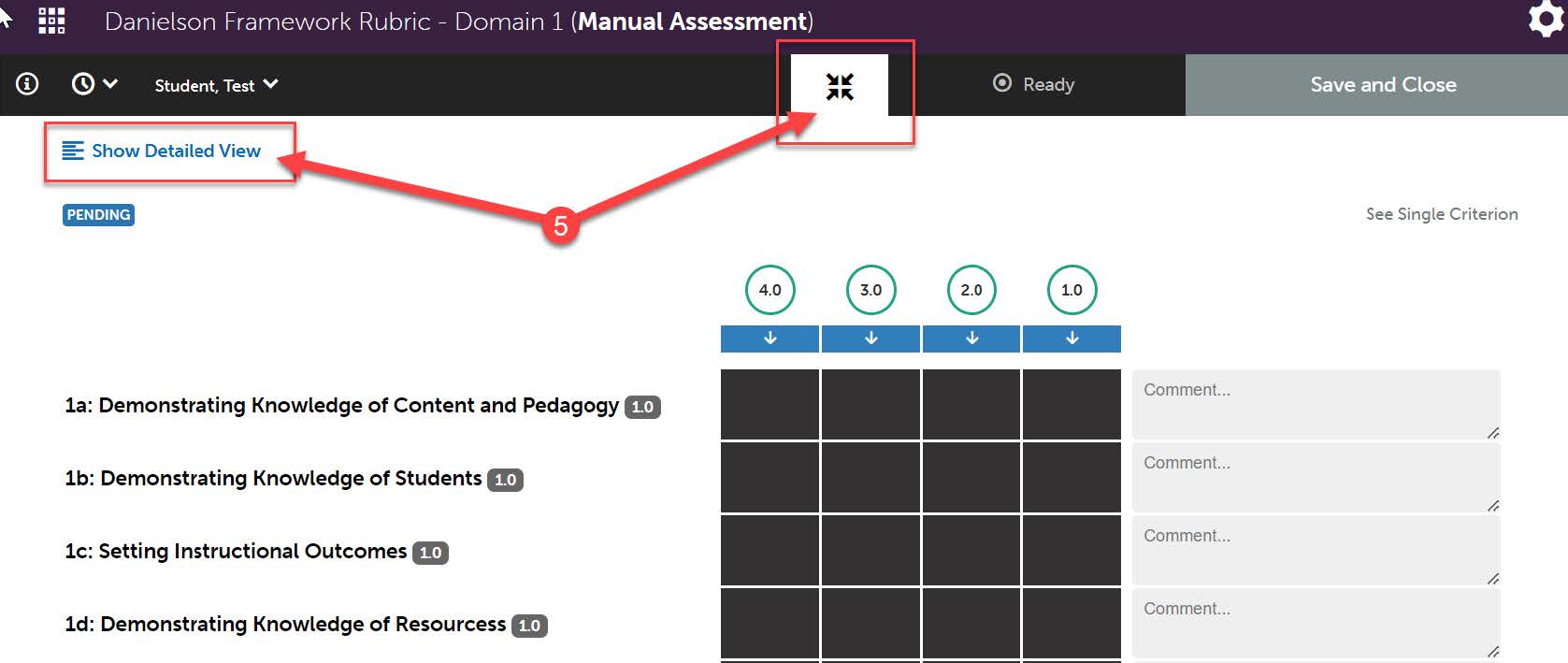
- This will open the first Danielson Rubric. You have a few options on how you would
like to view the rubric. The screen shot below shows the rubric as is. In this view,
you can hover your mouse over any rubric option to show the detailed explanation of
that performance level. You can click on “Show Detailed View” which will show the
descriptions for each performance level. You can click on the 4 arrows icon to show
one rubric item at a time. It is up to you how you are most comfortable viewing the
rubric.
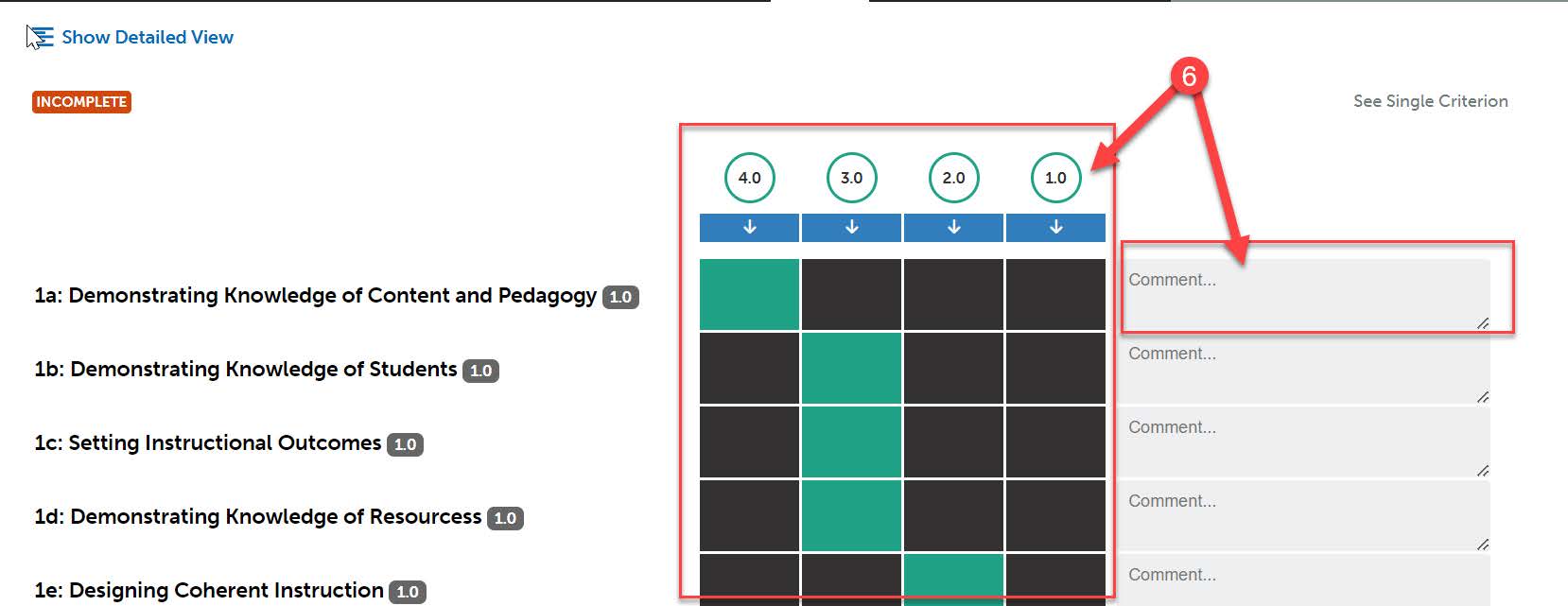
- Once you are comfortable with your view, you can begin to score the rubric. Click
on the performance level you would like to select for each criterion. Once selected,
the box will change to green on the item you selected. You can add comments to each
criterion if you wish, but it is not required.
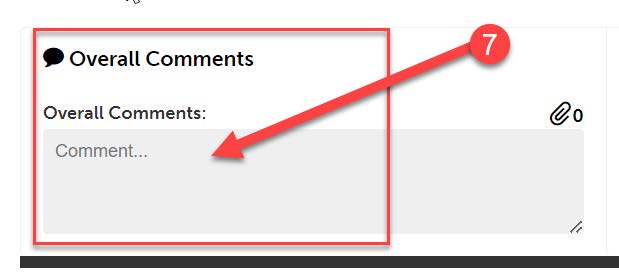
- Complete the entire rubric. At the very bottom, there is an “Overall Comments” box
if you wish to leave a comment. Once you are done, scroll all the way back to the
top of the rubric.
- If you want to save your work and come back to it at a later time, click “Save as
Draft”. If you are finished with the rubric and are ready to submit it, click “Save”.

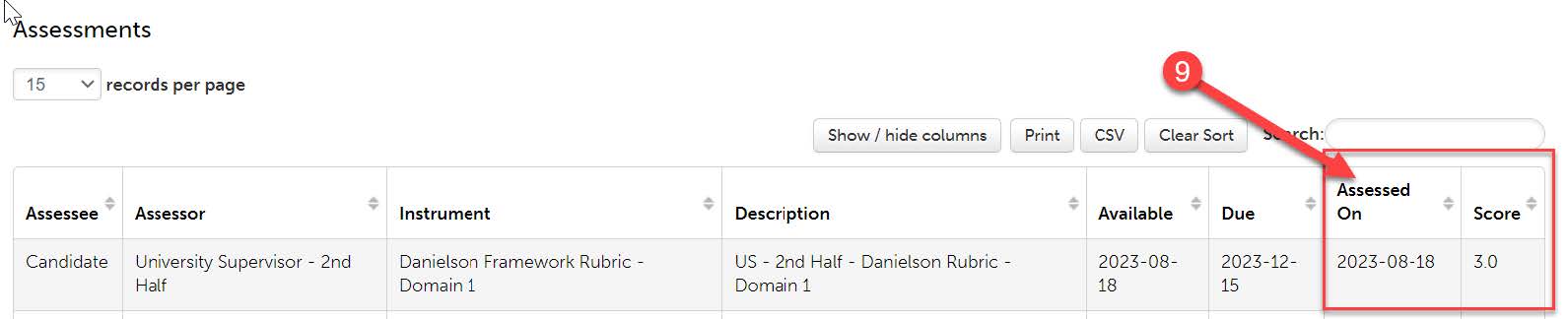
- Once you have clicked “Save,” you are finished with the evaluation. Back in your placement,
the row for this assessment will now show the date it was completed and the mean score.
- Repeat steps 4-8 for each Domain of the Danielson rubric.
SPM
- In most cases, you will only need to score the SPM in one half of student teaching.
The SPM Rubric in the half that you are NOT scoring it in can be left blank. Like
the Danielson Rubrics, this will be scored in the Placement.
- Scroll to the section of the placement that lists all the assessments. To complete
SPM Rubric, click on that row. Then, when a menu appears, click “Assess”.
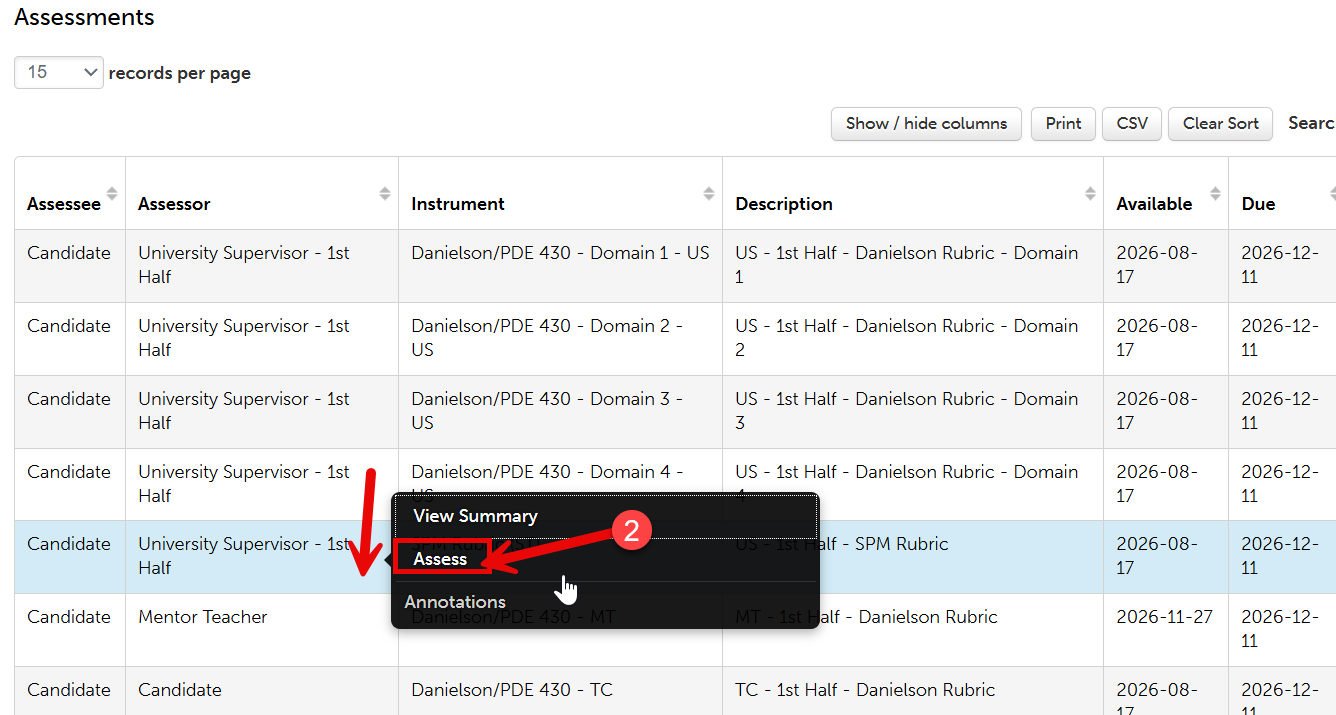
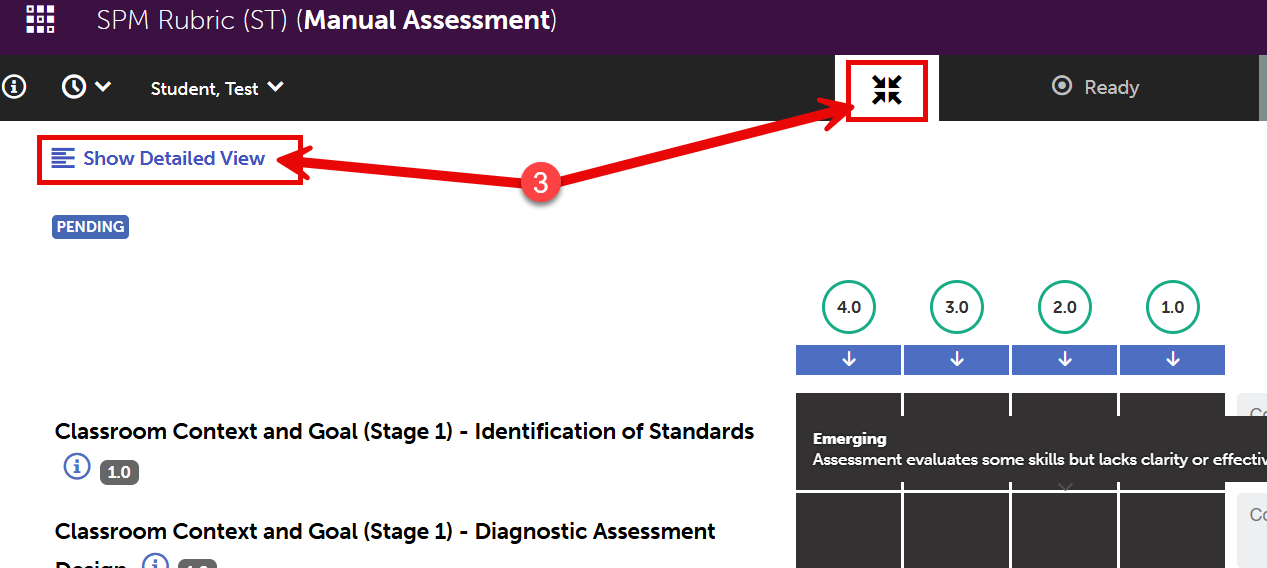
- This will open the SPM Rubric. You have a few options on how you would like to view
the rubric. The screen shot below shows the rubric as is. In this view, you can hover
your mouse over any rubric option to show the detailed explanation of that performance
level. You can click on “Show Detailed View” which will show the descriptions for
each performance level. You can click on the 4 arrows icon to show one rubric item
at a time. It is up to you how you are most comfortable viewing the rubric.
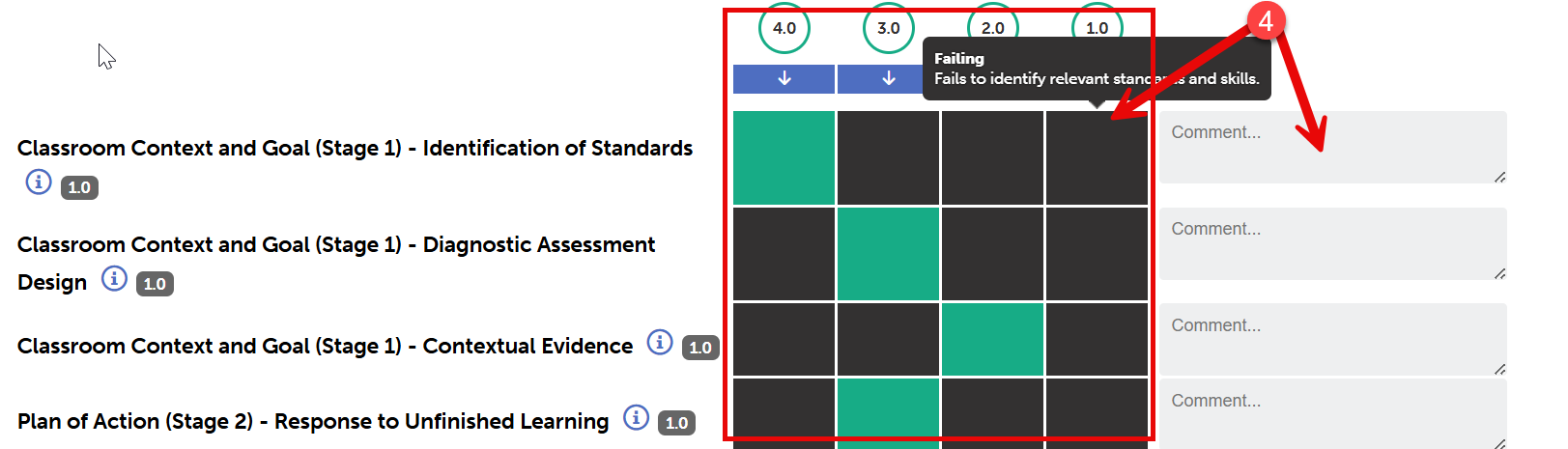
- Once you are comfortable with your view, you can begin to score the rubric. Click
on the performance level you would like to select for each criterion. Once selected,
the box will change to green on the item you selected. You can add comments to each
criterion if you wish, but it is not required.
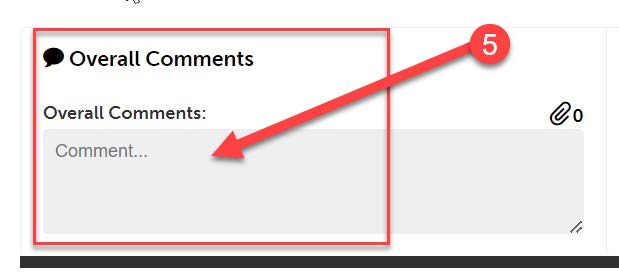
- Complete the entire rubric. At the very bottom, there is an “Overall Comments” box
if you wish to leave a comment. Once you are done, scroll all the way back to the
top of the rubric.
- If you want to save your work and come back to it at a later time, click “Save as
Draft”. If you are finished with the rubric and are ready to submit it, click “Save”.

- Once you have clicked “Save,” you are finished with the assessment. Back in your placement,
the row for this assessment will now show the date it was completed and the mean score.

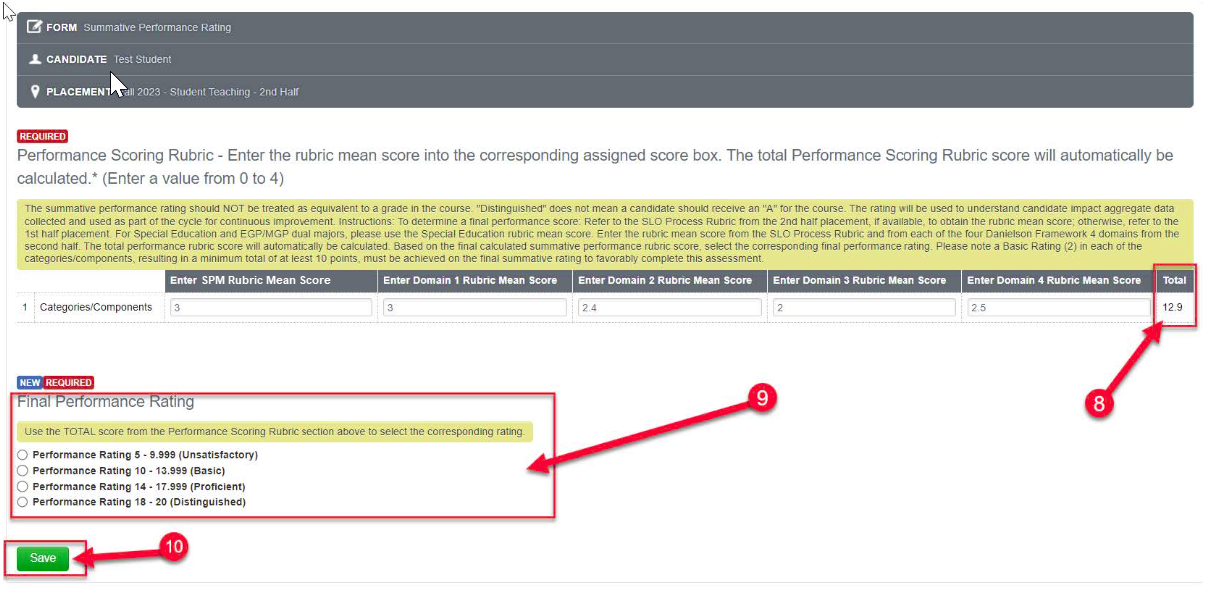
- During the 2nd half, you are required to complete the “Summative Performance Rating.”
This is located in the 2nd half placement under “Surveys,” which is below the assessments.
The “Summative Performance Rating” is a requirement for students to become certified,
so please be sure to complete it.
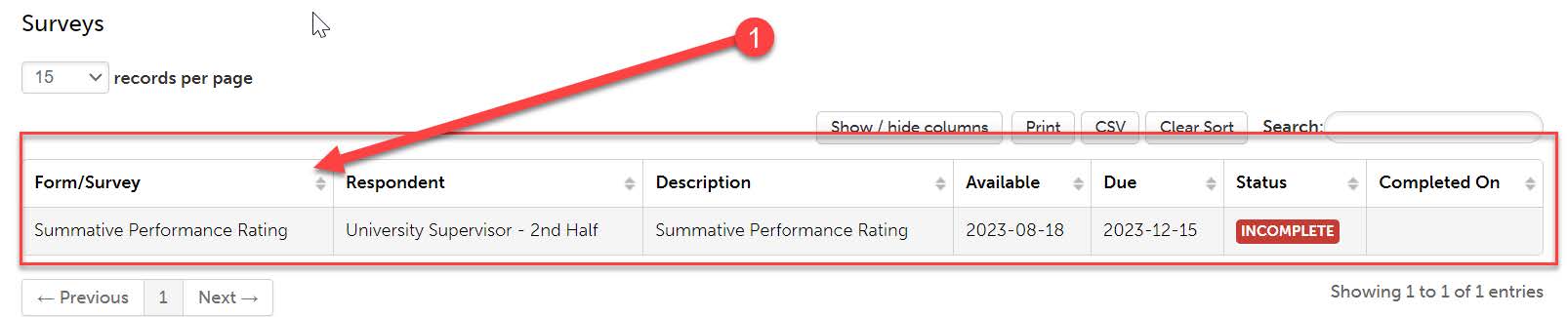
- Before completing this, you should note your mean scores for each Domain of the Danielson Rubric. You can view these above under “Assessments”.
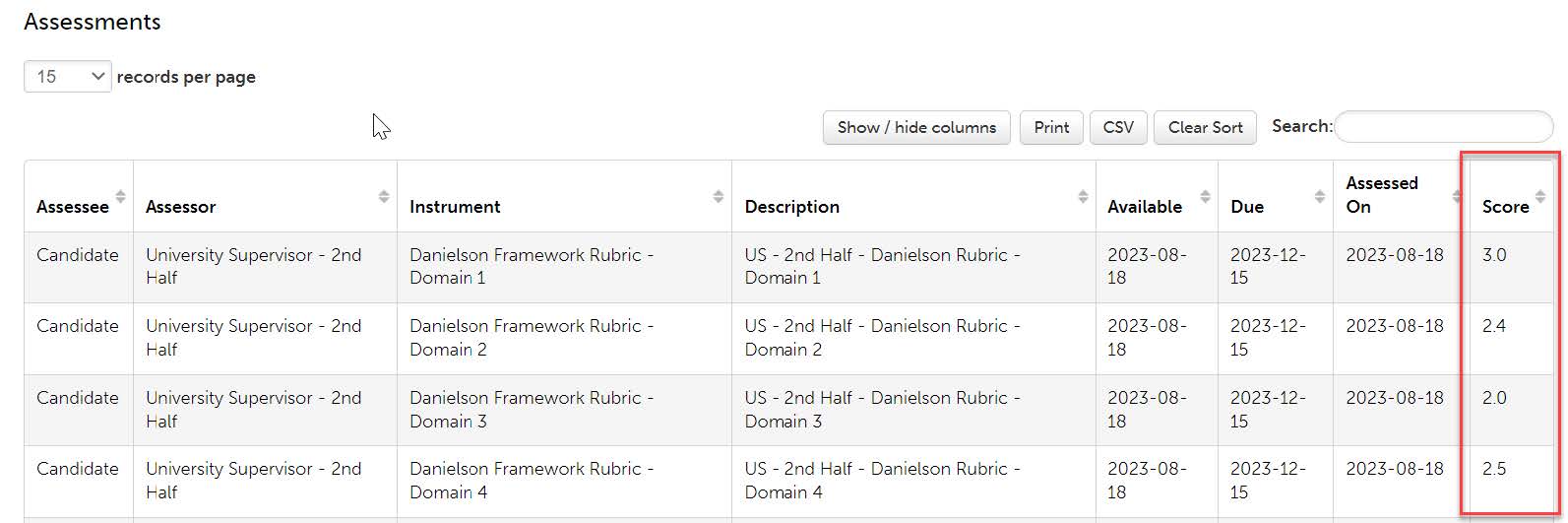
- You should also note the student’s SPM Rubric mean score. This could be located in either the 1st half placement or the 2nd half placement,
depending on where you scored it. If the student is a dual major, you have view only
access to their placement in which you were not the supervisor. So, if you were not
the supervisor that scored the SPM Rubric, you are still able to view the score. View
that placement and retrieve the SPM mean score.

- Once you have noted these 5 mean scores (4 Danielson Domains, 1 SPM), scroll to “Surveys” and click on the “Summative Performance
Rating” survey. When the menu appears, click “Take”.

- This form requires you to enter the mean score for the SPM and each of the 4 Danielson
Domains. The form will automatically calculate the total for you after you save. Enter
each score.
- Then click “Save.” You will get an error message since the next question is not answered
yet, but that is okay.
- Now exit the form.
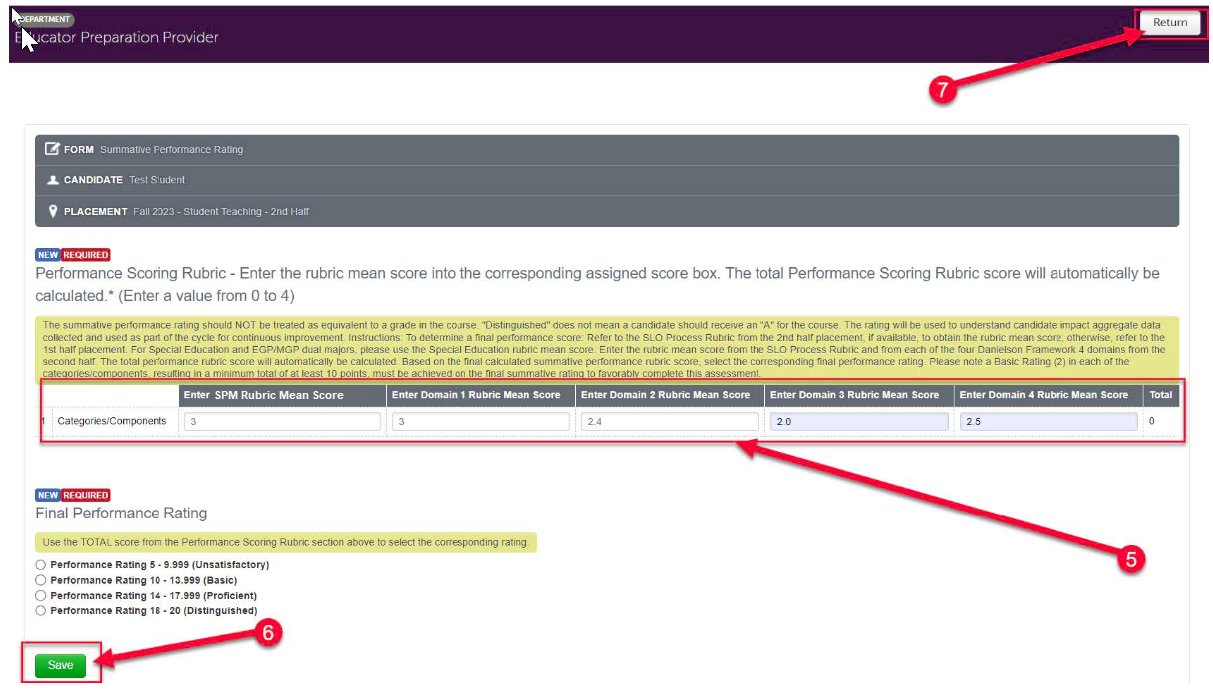
- Navigate back to the form. You should now have a calculated total score. Note that
depending on your computer/screen size, you may need to scroll to the right to see
the total.
- Then, select the “Final Performance Rating” that corresponds with that total.
- When you are finished, click “Save”.